Import Files into Neptune® 360™
An import file is the latest structured data file from the billing system that includes route and meter information required for billing reads. Importing this file into Neptune® 360™ ensures that the system reflects any updates made in the billing system.
The import files contain billing information for the meters within a utility for which billing reads are required. Neptune® 360™ supports the following import formats:
- .imp
- .txt tab delimited
- .csv
During an import, the system checks for active existing routes and prompts you to define the conditions under which you either accept or cancel the import function.
 Example Import Scenarios
Scenario 1 – Importing Active Routes
If the billing file you import contains active routes that already exist in Neptune 360, you can close or deactivate the existing routes, and the import continues. If you do not close or deactivate the existing routes, then the import continues but the new version of the routes are not imported.
Scenario 2 - Importing Closed / Deactivated Routes
If the billing file you import contains closed or deactivated routes that already exist in Neptune 360, and the system checks and finds that the routes do not already exist in active status, the system imports the new version of the route.

What You Can See and Do in This Window
Click a link to display the related information or step-by-step procedure.
| – | |
|
– |
|
| – | |
| – |
View the Imported Files Grid
The Import Files grid shows the files that were imported along with the email for the user who imported the file and when, and the status of the import. The grid includes navigation options so you can customize the number of imports you see in the grid. You can click the name of the any import file to view the import summary, click the error or warnings link in the Status column to download and view the error log, and download the import source file.
Import a File
- On the Neptune 360 navigation panel, select Import Files under Billing Services.
- Click Import near the top left of the screen to display the Import Summary screen.
- Click Browse to display your local folders and files.
- Select a file to import, and then click Open.
- Verify the file name and date.
- Click Import File.
- If the file you import is more than 35 days old, the system displays an alert. Click Continue to verify the import file is the most recent version.
The system processes the file and displays a status bar for each separate validation in the import process. The system:
- Performs a pre-check of the import file.
- Validates the structure and layout of the import file to ensure the file header and records are present.
- Validates the data values within each record.
- Loads the records into Neptune 360.
- Verifies the sites in the import records are geocoded.
- Loads the readings into Neptune 360.
If you want to access other screens to perform tasks, the file continues to upload in the background.
- If the import file contains errors or warnings about active routes already imported, as displayed in the Confirm Import window, you can click the Errors or Warnings link in the Import Summary to download and view the import error log in Excel before you determine the next step.
- After reviewing the Import Summary, to:
- Make changes in billing, click Cancel Import, make the changes in billing, and then restart the process from step 1. Canceling the import cancels the import entirely.
- Import the file after verifying that the warnings or errors do not impact the import, click Import Anyway.
- Close the existing version of the routes and import the new version from the selected import file, click Replace active route(s). Once a route is closed, that version cannot be exported.
- Continue the import, but skip over the active routes listed, click Ignore active routes(s) . Only routes not listed in the Confirm Import window are imported.
- If your import file contains errors, you can download the error log to view the Import Error Log and make corrections. See Import Warning Descriptions information about various import warnings so that you know the corrections to make.
View the Import Summary
You can view the error import file for information about the warnings and errors so you know where to make corrections in the import file before you re-import. For additional import and export file layouts, see the Neptune® 360™ Import and Export Processes guide that you can download from the Neptune website.
- On the Neptune 360 navigation panel, select Import Files under Billing Services.
- In the Import Files grid, click the name of the import file you want to view.
The system displays the Import Summary window for the selected file that shows data about the import, including the total number of routes, readings and meters imported.
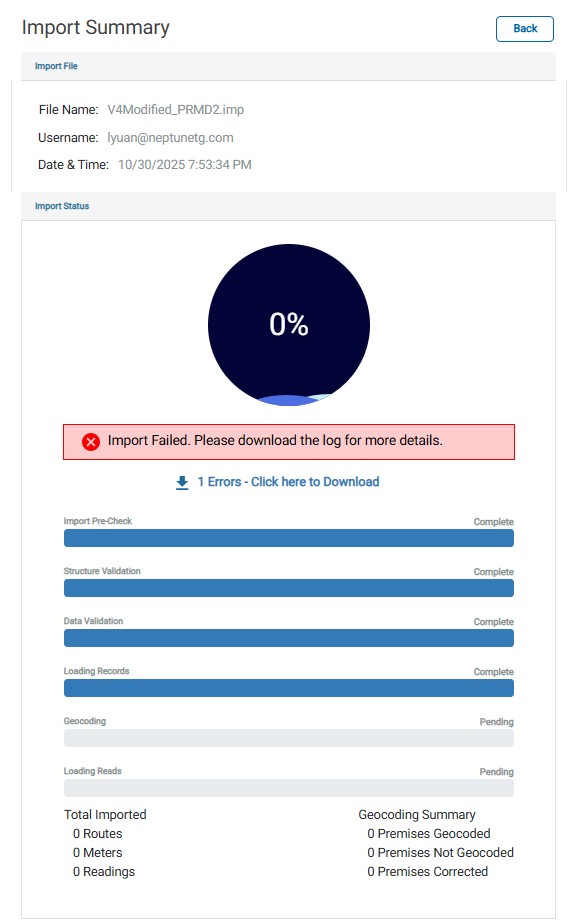
- If the download fails, the error "Import Failed. Please download the log for more details." displays in red.
- If the download is successful but contains warnings, the error "Imported with Warnings. Please download the log for more details." displays in yellow.
- If the download is successful but contains specific lines that failed, the error "Imported with Errors. Please download the log for more details." displays in orange.
- You can now view the Import Error Log to see which lines in the import file failed or generated a warning.
View the Import Error Log
If your import file contains errors, you can view them in an Excel® spreadsheet. Typical errors that occur when importing a file include a missing mandatory field or duplicate endpoint IDs. Based on the error details, you can make corrections and re-import the file. Pay special attention to the Event Details column in the Excel file for each import line item that failed, which indicates the correction required for a successful import. You can work with your data administrator to view the source import file and make corrections to the data or mapping as required.
- On the Neptune 360 navigation panel, select Import Files under Billing Services.
- On the Import Summary window, click xxx Errors - Click here to download.
- Open the error log in the top right corner of the window or in the Downloads folder on your device.
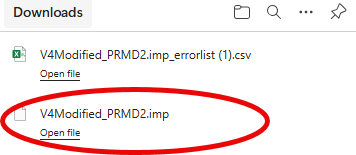
The errors display in an Excel file and includes the details of each error.

Import Warning Descriptions
Warnings identify potential data quality issues. However, the warnings identified may not be issues at all. For example, it is valid to have records with duplicate account numbers if the account has multiple meters or a compound meter. If you receive this type of warning and it is valid for you, continue with the import. If the import file contains more duplicates than expected, review each record associated with the warning to determine if corrections are required. If corrections are required, cancel the import, go to the billing system, make the changes, and then begin again with step 1.
This table defines the typical import warnings you may see and the impact to your import file progress.
| Error Event | Impact |
|---|---|
|
Blank Meter Size NOTE: Neptune 360 reads this size as 5/8". If your actual meters is larger, you may see consumption flag. |
This warning indicates that a meter size is not defined. This field should contain data for the system to accurately calculate consumption for display and reporting purposes. |
|
Blank MIU ID *MIU ID can also be called Collection ID or ID Expected |
This warning is valid where no endpoint Any meter or Meter Interface Unit (MIU) that collects usage data. / MIU is installed. If an endpoint (MIU) is installed, then no AMI Advanced Metering Infrastructure. A system that captures, stores, and provides to the utility, at frequent intervals, detailed consumption and other information, such as usage, leak, and flow status, to support advanced applications. Reading the meters is automated through strategically placed gateways. reads can be captured against the record until the endpoint (MIU) ID is provided. |
|
Blank Register UOM *Register UOM can also be called Meter UOM, as set up on the Neptune site, and is not considered an issue. |
This warning indicates that a Unit of Measure (UOM) is not defined. This field should contain data for the system to accurately calculate consumption for display and reporting purposes. |
| Duplicate Account Number | This warning indicates that a duplicate account number is in the import file. A duplicate account number is valid if there are compound meters or multiple meters or properties under the same account. If a duplicate account number is not expected, then allowing the import and correcting account numbers later may result in consumption accumulating under the wrong account number in Neptune 360. |
|
Duplicate Endpoint (MIU) ID *MIU ID can also be called Collection ID or ID Expected You can get the same reading for the first meter heard that is at both locations. |
This warning indicates that a duplicate ID appears in the import file. The MIU ID is a unique value used to associate readings. If there are multiple records with the same MIU ID in the import file, then the system does not know which MIU / endpoint should receive the readings, resulting in unexpected behavior. |
| Duplicate Meter Key | This warning indicates that a duplicate meter key is in the import file, which has no impact in Neptune 360. If the billing system uses Meter Key and duplicates are not expected, then it may create issues with the export file. |
| Duplicate Meter Number | This warning indicates that a duplicate meter number is in the import file. A duplicate meter number is valid for compound meters. If a duplicate meter number is not expected, then allowing the import and correcting meter numbers later may result in consumption accumulating under the wrong meter number in Neptune 360. |
| Duplicate Premises Key | This warning indicates that a duplicate premises key is in the import file. A duplicate premises key is valid if there are multiple meters or a compound meter with the same premises information. If a duplicate premises key is not expected, then allowing the import may result in incorrect customer name and location details displayed in Neptune 360. |
|
Duplicate Route ID *Route ID is the combination of Company, Office, Cycle, and Route |
This warning indicates that a duplicate route ID is in the import fie. If all records under the duplicate route do belong to that route, then there is no issue. If some records belong to a different route, then they may be active under the wrong route in Neptune 360 and may create issues with the export file. |
| Empty Route | This warning indicates that no records were provided for a route so none are available to export for that route. |
| Invalid Latitude /Longitude | This warning indicates that either the latitude or longitude is missing or invalid . An invalid latitude or longitude value impacts location mapping capabilities. |
| Invalid Line Length | This warning indicates that the line length does not meet the specification defined for the import file. Line lengths should follow the specification defined for the import file. There may not be immediate impacts when this warning displays, but future functionality may require adjusting the line lengths in the import file. Invalid line lengths may also be the result of selecting an incorrect import file format in Neptune 360. |
| Missing Address Information
*Address can also be referenced as street address or premises delivery address |
This warning indicates that address information is missing from the import file. This field should contain data for better searching capabilities and overall user experience in Neptune 360 and Neptune 360 Mobile. |
| Missing Customer Name Information | This warning indicates that a customer name is missing from the import file. This field should contain data for better searching capabilities and overall user experience in Neptune 360 and Neptune 360 Mobile. |
| Unicode Characters | This warning indicates that unicode characters were provided which are not supported. If the import continues, then the unicode character found is replaced with a blank space, which may result in data not being displayed as expected in Neptune 360. |
| Unrecognized Meter Size | This warning indicates that the value provided cannot be translated to a known standard. If the value is accurate, then contact customer support to appropriately map the value. |
|
Unrecognized Register UOM *Register UOM can also be called Meter UOM |
This warning indicates that the value provided cannot be translated to a known standard. If the value is accurate, then contact customer support to appropriately map the value. |
Download and View the Import Source File
On the Import Files grid, you can download any import file to see each record of raw data imported and the layout of the data. You can display the data in Notepad, Word, or a similar application. For information about the data layout, see the Neptune® 360™ Import and Export Processes guide. Work with your data administrator to make any necessary corrections to the import source file.
- On the Neptune 360 navigation panel, select Import Files under Billing Services.
- In the Action column, click Download for the import source file you want to download.
- In the top right corner of the window or in the Downloads folder on your device click Open file for the import file you want to view.
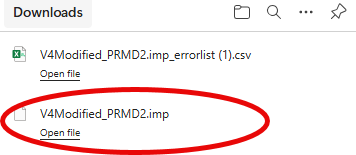
- In the Select an app to open this .imp file window, select the application in which you want to open the import file.
- Click Always or Just Once depending on whether you always want to open the file in the same application.
The import data is displayed in the layout defined for the file type.

